Misc
Welcome to Impressto Docs
This site contains comprehensive resources for small business owners seeking to resolve common digital challenges efficiently and effectively. This site is designed to provide expert solutions without the need for extensive overhauls.
Whether you are facing unexpected bugs, performance issues, outdated servers, or non-functional features, this site will try to offer the guidance and support you need to keep your digital assets running smoothly.
Featured Articles:
Create your own cloud storage with syncthing
Off-grid System Monitoring IOT Project
Making 3d printing a little easier
Record perfect audio from Youtube or others
Recently Youtube and other major media outlets have made is amlost impossible to download or capture audio. No worry, there is an easy workaround using Audacity and Pulse audio.
Here are the steps:
Install Necessary Tools:
If not already installed, open your terminal and run:sudo apt-get install audacity pavucontrol
Mute your microphone in system settings
Open the video you want to record and start playing it
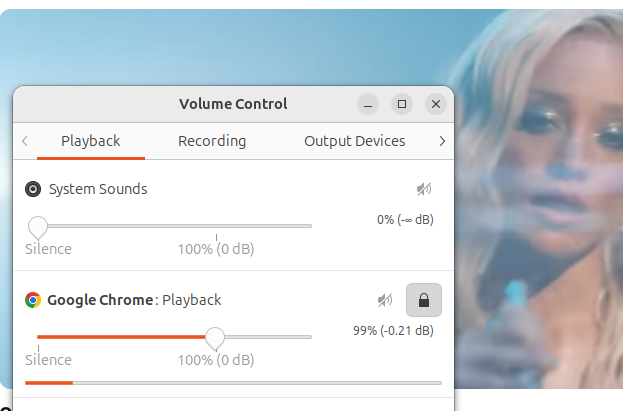
Open PulseAudio Volume Control and in the playback tab you should see the audio being monitored.
Configure Audacity:
Open Audacity.
In the audio setup toolbar (or preferences), set the Host to ALSA.
Set the Recording Device to pulse or default.
Configure PulseAudio Volume Control:
Open PulseAudio Volume Control (pavucontrol) from your application menu.
Start recording in Audacity (click the red record button).
Quickly go to the Recording tab in pavucontrol.
Find Audacity in the list and change its input from the microphone to "Monitor of..." (e.g., Monitor of Built-in Audio Analog Stereo).
Record:
Play the video you want to record. Audacity will now capture the output sound instead of the microphone input.